

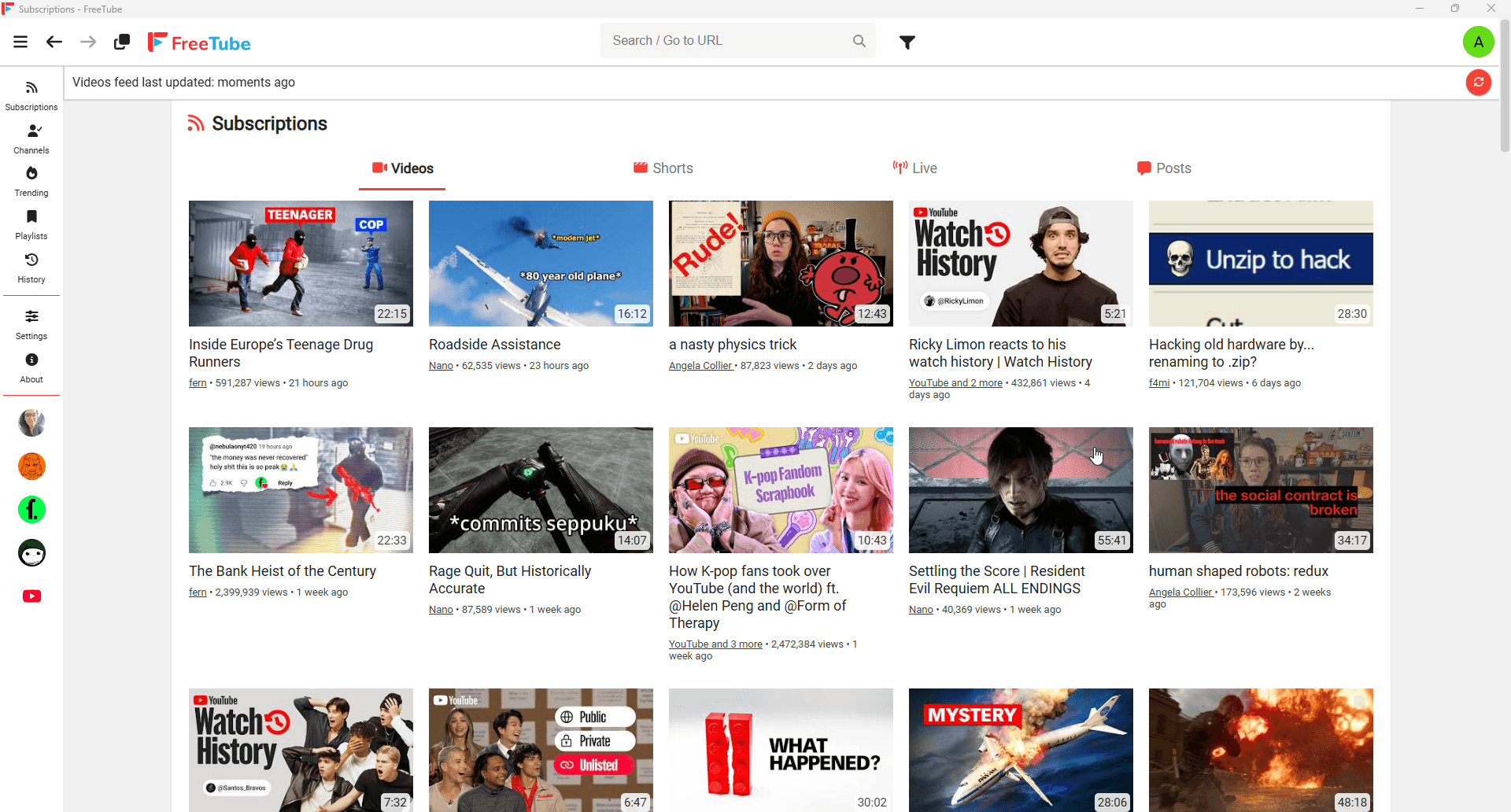
FreeTube is a free desktop client for watching YouTube and keeping subscriptions on your own computer. It is useful if you want a separate viewing app without signing into Google. It does not give you a YouTube Premium membership, paid videos or account-only features. This guide uses official documentation checked on October 13, 2026. AltStack has not independently tested these installation steps on every operating system. Start with two public channels and one video, then move your larger subscription list after that small workflow works.
1. Pricing: the app is free; internet and optional services are separate
The official FreeTube project provides its desktop downloads free of charge and publishes the software under AGPL-3.0. There is no required FreeTube account or software subscription for this guide. Donations are optional. Your internet connection, computer and any separately chosen network service still have their own costs.
Treat FreeTube as an alternative client for public YouTube viewing, rather than a promise of every paid YouTube benefit. Availability depends on the upstream service and the client’s current extractor. Before relying on it for a class or presentation, check that your particular video opens. Keep an official-browser option available for features that require a service account.
2. Download the correct desktop release
Go to freetubeapp.io and use its download section. The official app supports Windows 10 and later, macOS 12 and later, and Linux. Choose the package for your operating system and processor. Windows downloads include x64 and arm64 installers; macOS offers separate Intel x64 and Apple Silicon arm64 images. The About screen in your computer’s settings can help identify its processor.
The site links to the project’s GitHub releases. Use a release linked by that official page instead of an advertisement or similarly named mobile app. For Linux, choose the documented package for your distribution: Debian/Ubuntu packages, Fedora/Red Hat packages, AppImage or the linked Flathub option. Beginners do not need a source checkout, nightly build or development toolchain. Read the release notes when installing an update, especially if the current release addresses playback failures.
3. Install and launch without changing global security settings
On Windows, open the official installer you downloaded and follow its installation prompts. A portable package is another option, but keep its files together in a stable folder. On macOS, open the matching DMG and copy the application to Applications when prompted by the package. On Linux, install the selected package using your distribution’s usual package installer, or follow the instructions for the AppImage or Flatpak you selected.
If the operating system blocks the application, first verify where the package came from and read the project’s current release guidance. Do not switch off antivirus or operating-system protections globally just to make an app run. Launch FreeTube and confirm that its window opens normally. You should not need to enter a Google password. Keep your installer until launch succeeds, then record the installed version so that later troubleshooting has a useful starting point.
4. Search for a channel and watch one public video
Use FreeTube’s search field to find a creator you already know. Open the channel and check its name and video titles so you do not accidentally follow a similarly named account. Open one public video and start playback. Check sound, captions when available and seeking before changing several settings at once.
For an initial exercise, choose a short tutorial you can already play in a browser. Watch a minute, seek forward and return to the channel page. This separates an installation problem from a particular video’s availability. FreeTube’s default Local API obtains information directly from YouTube. That term describes where extraction runs; it does not mean the videos are stored offline or that the app can work without internet access. Restricted, removed or service-dependent content may behave differently from an ordinary public upload.
5. Subscribe locally and refresh the feed sensibly
Open the creator’s channel page and select Subscribe. The subscription is added to the active FreeTube profile on this computer. Add a second channel, then open the subscriptions feed and refresh it once. The project documents that FreeTube fetches channel information individually, so a large list takes more work than a small one.
Avoid repeatedly refreshing while a long refresh is still underway. The subscriptions settings also offer an RSS-based method. It can make a large feed easier to refresh, but its entries may lack information such as video duration or live status. Choose that tradeoff according to your needs. A local subscription does not subscribe your Google account, and changing the list in a browser does not automatically update FreeTube. Plan to maintain one primary list or import deliberate updates.
6. Import an existing YouTube subscription list
Use Google Takeout through your own browser session to export YouTube and YouTube Music data. Select only subscriptions when you want a small export. Create the export, wait for Google to prepare it and download the archive. Extract it on your computer. The FreeTube documentation identifies the subscriptions.csv file inside Takeout/YouTube and YouTube Music/subscriptions as the input for this workflow.
In FreeTube, open Settings, then Data Settings, then Import Subscriptions and select that CSV. After the import completes, check several familiar channels rather than assuming the archive imported perfectly. Duplicate, deleted or unavailable channels can explain a difference in counts. This import transfers a list of followed channels, not Google credentials, membership access or a complete account. Treat the archive as private personal data; do not upload it to a public issue report simply because an import error asks for more detail.
7. Organize channels with subscription profiles
Profiles let you split a long subscription feed into useful groups. Open the profile icon near the top-right of the app, then its settings control, or use Data Settings and Manage Subscriptions. In the profile manager, choose Create New Profile and give it a name and color. A practical first profile might be Learning, with only the channels you use for study.
Switch to that profile and subscribe to the relevant channels, or select existing channels in the manager and use Add Selected To Profile. The All Channels profile keeps the combined list. Profiles filter the subscription feed; they do not create separate watch-history or saved-video accounts. Removing a channel from All Channels removes it from other profiles too. Check the active profile before unsubscribing so that an attempt to tidy one feed does not dismantle your whole collection.
8. Choose playback quality for your device
FreeTube documents DASH, Legacy and Audio playback formats. DASH is the usual choice for video with adaptive quality and separate audio. Keep that as your starting point, then lower the selected resolution if playback stutters. Audio-only playback can suit a spoken lecture when you do not need its picture.
Legacy combines picture and sound in a simpler stream, but the documentation warns that it is limited to 360p. A 360p ceiling can therefore be a format setting rather than a broken installation. Compare one known video after changing a single setting. Write down the combination that works on your device. Higher resolution needs more network bandwidth and decoding resources; a setting that works on a desktop may not suit an older laptop. Free software pricing does not remove those hardware limits.
9. Back up the data you actually want to keep
Use the settings export controls for subscriptions when transferring your list to another FreeTube installation. For a broader backup, consult the official Data Location page and close the app before copying its data directory. The standard locations are %APPDATA%/FreeTube on Windows, ~/Library/Application Support/FreeTube on macOS and ~/.config/FreeTube on Linux. Flatpak uses a separate path under ~/.var/app/io.freetubeapp.FreeTube/config/FreeTube.
The documented database files separate profiles, preferences, saved playlists, watch history and search history. Keep a dated copy before reinstalling or resetting the app, and store it somewhere private. A subscription export is not the same as backing up every preference and saved item. Do not edit database files as a first troubleshooting step. For a new computer, test the documented import process before deleting the original installation or its backup.
10. Understand privacy and diagnose failures
FreeTube keeps its viewing data locally and does not require an account. Direct Local API requests still reveal your IP address and requested resources to YouTube. An Invidious connection adds an instance operator between you and YouTube; review that operator before trusting it. Optional integrations and update checks can make additional network requests. Local history is also visible to people who can access your computer or backups.
If playback stops, check the installed version and official Common Issues page. A Local API failure can require a new release after YouTube changes its site. A 429 error means requests were limited; stop refreshing and allow time instead of retrying continuously. If you deliberately choose another supported API, review the privacy difference and do not bypass upstream access controls. When reporting a fault, include version, operating system and a public example URL, with private logs and account data removed.
Official instructions and sources
Official downloads, platform requirements and free pricingOfficial release notes and installersFreeTube software licenseSubscriptions and RSS feed behaviorImporting subscriptionsSubscription profilesPlayback formatsLocal data and backup locationsPrivacy and network requestsLocal API behaviorCommon playback and rate-limit errorsOriginal AltStack guide by Sushil Kumar Sah. Installation steps follow provider documentation; they do not imply testing on every supported device.