
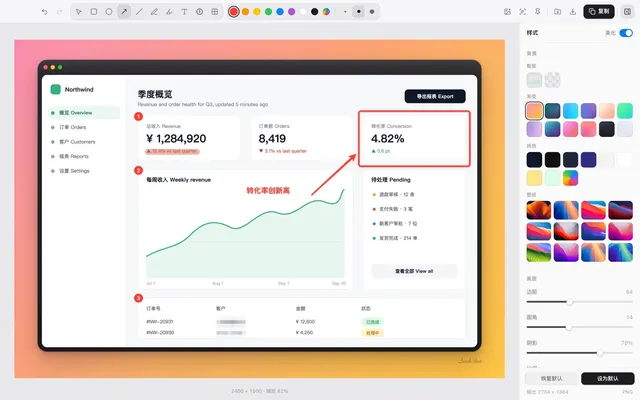

QuickShot is a GPL-3.0 desktop screenshot app for macOS 12 and later and Windows 10/11. It captures a window or selected region, then lets you annotate, blur or pixelate details, stitch captures and save or copy the result. This guide follows the project’s current README and Apple’s screen-permission instructions. AltStack reviewed those primary sources on November 3, 2026; we did not install the app or test its installers.
1. Check platform support, price and privacy first
The official project lists macOS 12 or later and Windows 10/11, with Apple silicon and Intel builds for Mac. The repository publishes the application under GPL-3.0. The app has no required subscription or account in the documented local workflow. Downloaded installers, your computer, and any separate storage service have their own costs; a free software license does not pay for those resources.
The README says screenshots and their recognized text stay on the device, but QuickShot from version 1.2.0 sends an anonymous launch report containing a random installation ID, app version, operating system and version, and CPU type. It says the report does not include capture contents. If you do not want that report, the README documents `usageStats: false` in the app’s `settings.json`; the exact locations are in section 7. Read the current README before relying on privacy settings because projects can change them.
2. Download the installer from the official release
Open the QuickShot Releases page linked below. For macOS, choose QuickShot-Mac-arm64-version.dmg on Apple silicon or QuickShot-Mac-x64-version.dmg on an Intel Mac. Open the disk image and drag QuickShot into Applications. For Windows 10/11 64-bit, use the release asset named QuickShot-Win-x64-version-Setup.exe. The GitHub Releases page is the direct source for the installers.
On macOS, the README says its distributed app is not notarized. Confirm that the download came from the official project release and review the project’s current installation instructions. If Gatekeeper blocks it, the project documents the macOS **Open Anyway** flow in System Settings → Privacy & Security. This lowers a system warning for that app; if you are not comfortable with that decision, stop and wait for a notarized build rather than bypassing the warning.
3. Allow screen capture on macOS
Launch QuickShot and follow its welcome guide to the requested Screen Recording permission. Apple’s current control is Apple menu → System Settings → Privacy & Security → Screen & System Audio Recording. Turn access on only for QuickShot if you choose to use it. You can return to this list later to change that choice. Apple notes that any information a third-party app collects remains governed by that provider’s own terms and privacy policy.
QuickShot can stay in the menu bar on macOS or the notification area on Windows. The project’s default capture shortcut is `⌘⇧X` on Mac and `Ctrl+Shift+X` on Windows. If the shortcut conflicts with another app, open QuickShot’s tray/menu-bar settings and change the global capture shortcut; the README says it can be changed there.
4. Capture a window or a selected area
Press ⌘⇧X on macOS or Ctrl+Shift+X on Windows, or start capture from the tray icon. In QuickShot’s default selection mode, move the pointer over a window and click to capture it. To select a region, drag over the screen; the project says you can then move or resize the selection and nudge it with the arrow keys before opening the editor. Press Return, double-click, or use the check control to continue. Press Esc to cancel or start the selection again.
On macOS, the README says a selected window is captured on its own, leaving overlapping windows out and keeping rounded corners transparent. If your goal is to capture a dialog together with an app behind it, use a region selection and inspect the result instead of assuming one window includes both. The optional native crosshair selection mode is under the tray menu’s Selection Style setting on macOS.
5. Add annotations and inspect redactions
The editor supports selection, rectangle, ellipse, arrow, line, pen, highlighter, text, numbered steps and redaction. The README maps V, R, O, A, L, P, H, T, N and M to those tools. Annotations stay editable, so select a mark to adjust or remove it before exporting. Use a box or arrow to show a specific area without adding an explanation that the screenshot itself does not support.
QuickShot’s Smart Redact command is Mod+Shift+M (Command on Mac, Control on Windows). The project says it uses on-device OCR to find common names, paths, email addresses, IP/MAC addresses and keys. Treat that as an assist, not a guarantee: OCR can miss a value or cover the wrong text. Zoom in, inspect the entire image, and verify that confidential text is no longer readable before sharing.
6. Save or copy the finished image
Use Mod+S to save to Downloads or Mod+Shift+S for Save As. Mod+C copies the finished image and closes the editor; Mod+Enter copies and closes it as well. QuickShot’s styled quick copy uses your saved background, frame, shadow and watermark by default. If you need the original capture with annotations rather than the saved visual treatment, turn off Styled Quick Copies in Settings and compare the copied result before sending it.
The editor also offers crop, undo/redo, pinning, image stitching, and on-device text extraction. Each feature serves a specific task; they do not turn QuickShot into a screen recorder or a shared cloud workspace. Keep the saved file in a folder with access controls appropriate to its contents.
7. Turn off optional launch reporting
The upstream README documents an opt-out in settings.json. On macOS the path is ~/Library/Application Support/quickshot/settings.json; on Windows it is %APPDATA%\quickshot\settings.json. If the JSON file already has settings, preserve them and set the usageStats property to false rather than replacing the file.
Save the JSON and restart QuickShot. This turns off the launch report described in the README; it does not prevent the operating system, installer source, or other software from making its own network requests. Development builds have reporting off by default according to the project documentation.
8. Troubleshoot permissions, shortcuts and OCR
If a Mac capture is blank or the welcome guide still asks for access, revisit System Settings → Privacy & Security → Screen & System Audio Recording and confirm the QuickShot switch. If macOS asks you to reopen the app after changing permission, follow that prompt. Apple documents this setting and explains that screen access is controlled per app. On Windows, check that the tray app is running and change the configured global shortcut if another application uses the same key combination.
If text extraction or Smart Redact does not recognize text on Windows, the README says OCR uses languages installed in Windows Settings. Install the language required by the screenshot and retry, then manually inspect the result. If an installer is blocked, verify that the file is the correct architecture and came from the official release page; do not download a repackaged copy. For a macOS Gatekeeper warning, use the provider’s documented steps only after reviewing that release, or choose not to open it.
9. Decide whether QuickShot replaces your current workflow
QuickShot is worth comparing with paid screenshot utilities when you need quick local captures, annotation, visual styling, redaction assistance or stitched images on macOS or Windows. Its GPL-3.0 application is free to use, and its core workflow does not require a paid model API. The operating system, hardware and any backup or sharing service remain separate costs.
It is not a Linux app in the current README, it is not a cloud collaboration service, and it is not a video screen recorder. It also does not provide CleanShot X’s full Mac-specific feature set just because both capture screenshots. Test the exact selection, annotation, export and privacy steps your work needs, then compare that short list with the provider’s current plan.
Official instructions and sources
QuickShot official README: features, shortcuts, install and privacy settingsQuickShot official releases and installersQuickShot GPL-3.0 licenseApple Support: control screen recording access on MacOriginal AltStack guide by Sushil Kumar Sah. Installation steps follow provider documentation; they do not imply testing on every supported device.