

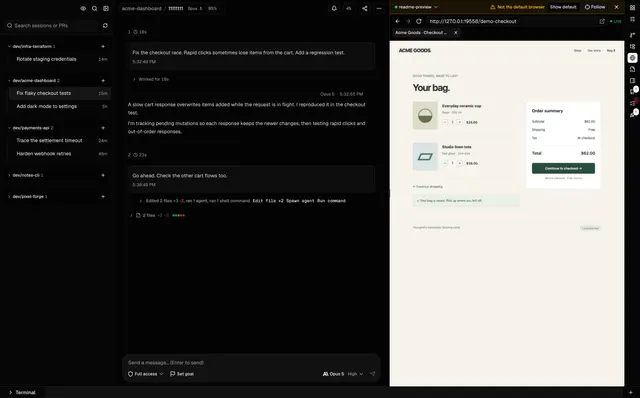
Cogpit is a local desktop and browser workspace for Claude Code, OpenAI Codex and GitHub Copilot CLI. It manages their sessions, files and approvals; it does not supply a model or replace those command-line agents. This guide follows the project’s current README and self-hosting documentation. AltStack reviewed those sources and did not install the app, build it, connect an agent account or expose a server.
Know what Cogpit does before installing it
Cogpit brings supported coding-agent sessions into one interface so you can follow conversation history, tool activity and file changes. The selected agent CLI still runs the work and supplies its model connection. Install and authenticate Claude Code, Codex or Copilot CLI first; Cogpit reads the corresponding local setup and history. Your access to each model, rate limits and provider terms remain controlled by that CLI provider.
The project is useful when you want to review several supported agent sessions in one workspace. It is not a general-purpose chat model, and an installed Cogpit window does not grant free model usage. Check the compatibility table in the official README for the precise session controls available to each CLI. In particular, Copilot CLI sessions do not mean that the separate VS Code Copilot Chat history is imported.
Choose a desktop, local web or headless setup
The official project offers three practical modes. The desktop app is the ordinary choice when you will work at the same computer. The `npx` launcher starts a local browser interface without building the source. The headless server is intended for a machine without a display or for a service you deliberately keep running. A development Vite server is for contributors changing Cogpit itself, rather than the normal user installation.
Start with the desktop or local web mode unless remote access is a real requirement. A local interface is simpler to protect and does not need a public DNS name or reverse proxy. Headless remote use adds authentication, TLS, update and firewall responsibilities. Do not bind a private agent workspace to a public network as a convenience shortcut.
Prepare an agent CLI and its own account
Install at least one supported CLI from its official provider instructions and sign in through that CLI. For Claude Code, follow Anthropic’s installation and authentication documentation. For Codex, use the official OpenAI Codex repository and its current setup instructions. For GitHub Copilot CLI, use GitHub’s installation guide. Cogpit needs a functioning CLI runtime; it does not make an account or subscription for you.
Begin with one CLI and confirm it works in its own terminal before connecting Cogpit. This separates an agent-login problem from a Cogpit problem. Do not paste access tokens into a session transcript, public bug report or shared screen. Check the currently supported model options with the CLI provider because model availability can change independently of Cogpit.
Run the local browser interface with npx
For the documented launcher, install Node.js version 20.11 or newer. In a terminal, run the command below. The launcher starts Cogpit on a loopback address and opens the interface in your browser; it selects an available local port. Keep this terminal open while you use the local server. Press `Ctrl+C` in that terminal to stop it.
For a single known session, the README also documents `npx cogpit@latest preview <session-id>`. Replace `<session-id>` with an actual session identifier from your own supported CLI. Do not share a private session identifier or its transcript publicly. If the launcher reports a runtime or package error, confirm the Node version and retry using the current installation instructions rather than downloading an unofficial executable.
Install the desktop release or run a source build
To use the desktop app, download the package for your operating system from the project’s official GitHub Releases page. The README lists Apple Silicon and Intel macOS installers, a Windows x64 installer, and Linux AppImage or pacman packages. On Windows, the maintainer says the installer is unsigned and has received less testing; Windows SmartScreen may show an unknown-publisher warning. Treat that as a real release limitation and verify that the download came from the official project before deciding whether to proceed.
The documented contributor build uses Bun. From a clean working directory, the README lists `git clone https://github.com/gentritbiba/cogpit.git`, `cd cogpit`, `bun install`, and `bun run dev` for the development app. For the headless server from source, the self-hosting guide lists `bun install`, `bun run build`, then `bun server/standalone.ts`; its default bind is `127.0.0.1:19384`. These are provider-documented commands, not commands AltStack ran.
Start a session and review agent support
Open a project folder in Cogpit and select a session from the supported agent CLI. The workspace can show a conversation, model controls where the agent supports them, file edits and the session’s combined changes. Review a proposed change before applying it to valuable work, and keep a separate version-control checkpoint before asking an agent to edit a repository.
Controls vary by agent. The provider documentation describes starting and resuming Claude Code, Codex and Copilot CLI sessions. Some history and rewind controls are native to one CLI and not another. Cogpit can discover Copilot CLI session events, but it does not import VS Code Copilot Chat history. Confirm each action in the current agent-specific section before depending on it in a team workflow.
Understand the price of the software and the models separately
The Cogpit repository is MIT-licensed, and its README describes the desktop and local web app as free. A source build contains that repository code. This does not make Claude, Codex, Copilot, their models or their usage free. You still need any provider account, subscription, included allowance or API credits required by the CLI you run. Check each provider’s current plan and usage page for actual costs and limits.
Official Cogpit binaries may include a separate proprietary Cogpit Team UI module that is not present in this repository and is not covered by its MIT license. AltStack has not verified a price or license for that separate module, so the free-source description applies to the code in the repository, not every feature in a binary. Optional integrations and remote infrastructure also have their own account and operating costs.
Keep session history and network access in view
The official self-hosting guide says agent sessions run on the machine running Cogpit and are not sent to a Cogpit-owned server. Cogpit reads session history from the configured CLI directories. The agent CLI still sends requests to its model provider, so the provider receives whatever context the agent submits under its own settings. Optional integrations communicate with the services you connect. Read those services’ privacy and retention terms before using work or client data.
A headless server starts on loopback by default. If you deliberately make it reachable beyond loopback, Cogpit requires a network password of at least 16 characters. Use the documented `COGPIT_NETWORK_PASSWORD_FILE` setting or a secrets manager rather than committing a password to a repository. Run the service under a separate, least-privileged operating-system account and set the projects root to only the folders it needs. Anyone able to start a session can browse and create folders under that root.
Put HTTPS in front of remote browser access
Cogpit’s browser login uses a secure cookie, so remote browser access requires HTTPS. The project documentation explicitly says that opening a plain `http://192.168.x.x:19384` address cannot create the remote browser login cookie. Keep the Cogpit service on loopback and configure a TLS reverse proxy in front of it. The documented Caddy pattern is a hostname block with `reverse_proxy 127.0.0.1:19384`.
The proxy must forward the client information header so remote requests are not mistaken for a local connection. For Nginx, the guide also requires WebSocket forwarding and disables response buffering because Cogpit streams sessions over server-sent events. Protect the proxy with a valid certificate, keep the service and CLI dependencies updated, and restrict access at the firewall. Do not expose the server directly to the public internet just because the password option exists.
Treat session sharing as control of the host
Cogpit session sharing lets a guest read and interact with a shared coding-agent conversation, answer questions and approve or deny tool requests. The provider warns that the sharing passphrase is equivalent to a shell on the host because an approved agent tool request can execute on that machine. Share a session only with someone you would allow to operate the agent, send the link and passphrase through separate channels, and revoke access when the work is done.
Do not use sharing for a public demo with private repository content. Review the official sharing documentation for its exact session and agent limitations; Copilot sessions are not supported for guest sharing in the checked docs. Network passwords and session-share passphrases are separate credentials, and one should never be reused as the other.
Troubleshoot common setup problems
If the browser interface does not appear, check the launcher output for the selected local address and port, and make sure the process remains running. If no CLI appears in Cogpit, sign in to that CLI in its own terminal first and confirm the account can start a session. If a model is missing, check the provider’s current model availability rather than assuming Cogpit includes a model entitlement.
For a remote login failure, confirm the browser uses the HTTPS reverse-proxy hostname, a certificate is valid, and the proxy forwards the required client headers. If a live conversation stops updating behind Nginx, confirm buffering is disabled for the Cogpit route and WebSocket forwarding is enabled where required. For Windows installer warnings, verify the official release source and read the project’s signing/testing limitation. If a support report is necessary, inspect screenshots, transcripts and logs for local paths, prompt text, tokens or customer data before sharing them.
Keep a small rollback and update plan
Before an update, close active sessions and preserve the project files that matter. Keep a normal Git commit or backup for code being changed by an agent; Cogpit’s history controls are not a substitute for an independent project backup. Check the release notes and current documentation for operating-system changes, CLI compatibility and migration requirements before updating either Cogpit or an agent CLI.
For a headless installation, record which account runs the service, the working directory, the projects root, reverse-proxy configuration, credential-file location and update procedure. Store secrets outside the repository and restrict their file permissions. After an update, confirm the authenticated local or HTTPS interface works and that a new session can be opened only with the permissions you expect. AltStack has not installed or executed Cogpit, so these are source-based setup steps, not a claim that a tested deployment is running.
Official instructions and sources
Cogpit official README, installation, supported agents and source buildCogpit official self-hosting guideCogpit usage and agent capability matrixCogpit official GitHub releasesCogpit MIT license and proprietary-module noticeAnthropic Claude Code documentationOpenAI Codex repository and setup documentationGitHub Copilot CLI installationNode.js official download and release informationBun official installation documentationOriginal AltStack guide by Sushil Kumar Sah. Installation steps follow provider documentation; they do not imply testing on every supported device.